A founder interview usually leaves you with two jobs: shape the full conversation into an episode, then find a few answers that can stand on their own in a short clip. The best editor depends on which job is slowing your team down.
If you have separate camera and mic tracks, start with an editor that lets you check the mix and camera changes. If the episode is already approved, a clipping tool may be all you need. The six options below cover remote recording, transcript edits, full-episode finishing and social clips.
What Should You Look for in an AI Podcast Editor?
Check how the editor handles separate mic and camera tracks, how it lets you review spoken edits and what you can change after it suggests a clip. A team editing an interview shot on two cameras needs different controls from a team pulling clips from a finished episode.
Try a section with a genuine editing problem, such as two people talking over each other or an answer that begins with “that’s why we changed it.” Test whether you can keep the question or the missing explanation. An editor can suggest the cut, but the listener still needs to know what “it” means.
AI Podcast Editors at a Glance
ToolBest forHow it worksVerdictInvideoA full episode and clips from separate tracksSync angles and refine cuts and audioBest for full-episode control and cutdownsRiversideRemote interviewsRecord separate tracks and edit the episodeBest when recording and editing belong togetherDescriptReviewing exact spoken linesCut and find moments through the transcriptBest when the transcript guides decisionsOpusClipAn approved long episodeSuggest short clips and add captionsBest when the remaining job is short clipsKapwingShort podcast clips that need a tighter paceIdentify and remove silent sections with Smart CutBest for tightening selected clipsAdobe PremierePodcast teams that already edit on a desktop timelineRefine audio with Enhance Speech and edit the picture on a timelineBest for detailed desktop finishing1. Invideo for Editing Separate Camera and Mic Tracks
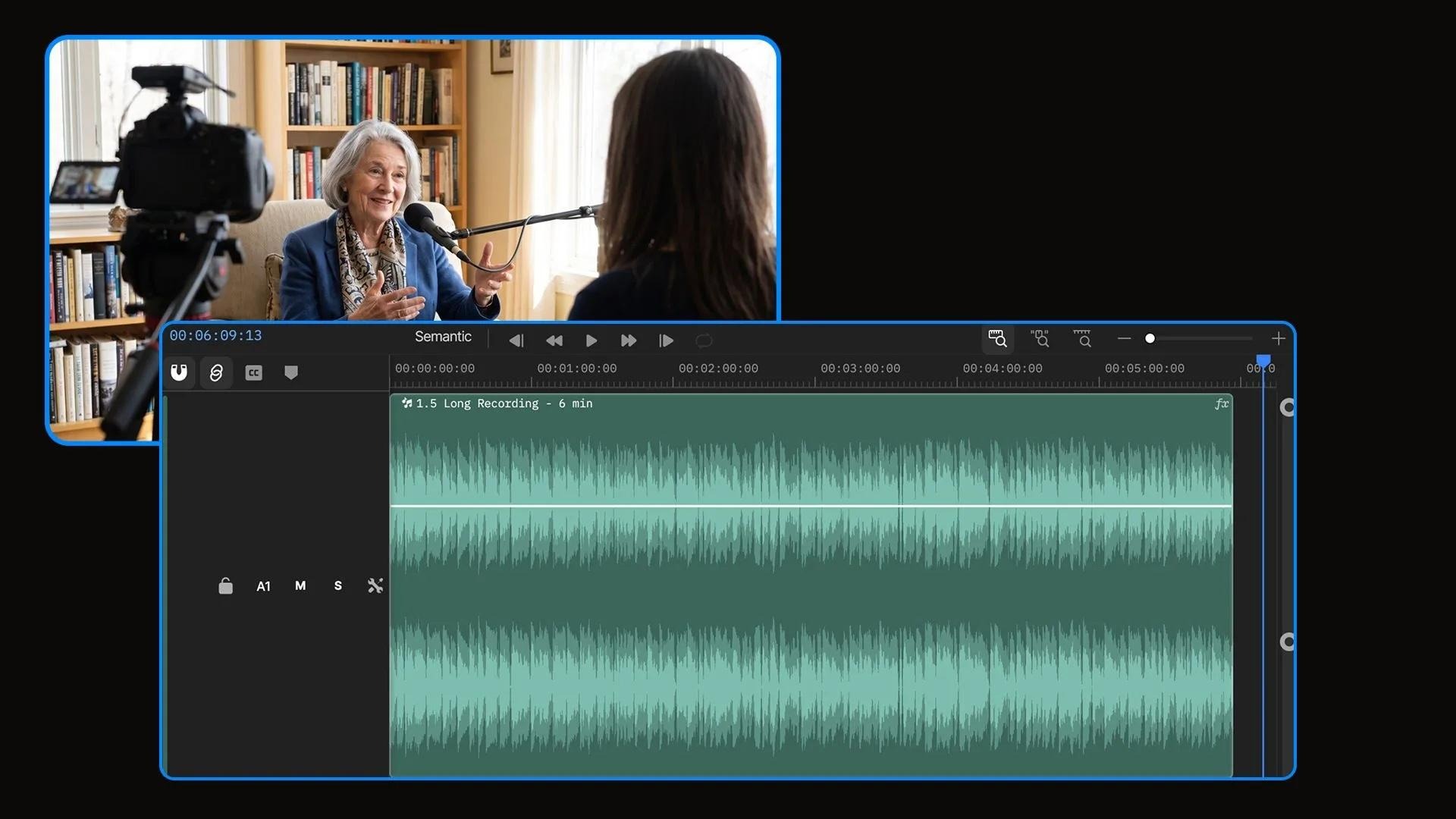
The waveform view in invideo Editor helps locate pauses and edit dialogue. Image credit: invideo.
Best for: A full episode made from separate camera and microphone recordings.
Start by uploading the interview footage and the audio files from each mic. In the AI podcast editor, you can tell the editing agent which recording should carry the sound, when to cut between speakers and which parts of the interview need to remain intact. The tool can sync cameras, remove fillers or long pauses and clean up voices on the timeline.
A founder interview might include a false start, a clear answer and a follow-up that changes how the answer should be understood. Ask for the false start to go and the two parts of the answer to stay together. When you review the first cut in invideo Editor, you can adjust camera changes, trims and voice levels by hand or ask for another specific change. Keep a short pause when it helps the listener follow a difficult answer.
Finish the episode before choosing excerpts. Find one answer that has a beginning and a clear point, then check where it starts and ends. The same project can support exports of the episode, short clips and an audio-only version. This fits a team that wants control over both the main video and the clips it takes from it.
What to check: Check overlap, camera switches and whether a cut changes the guest’s meaning.
Verdict: Choose it when you need both a first cut and manual control over the episode and its clips.
2. Riverside for Recording and Editing a Remote Interview
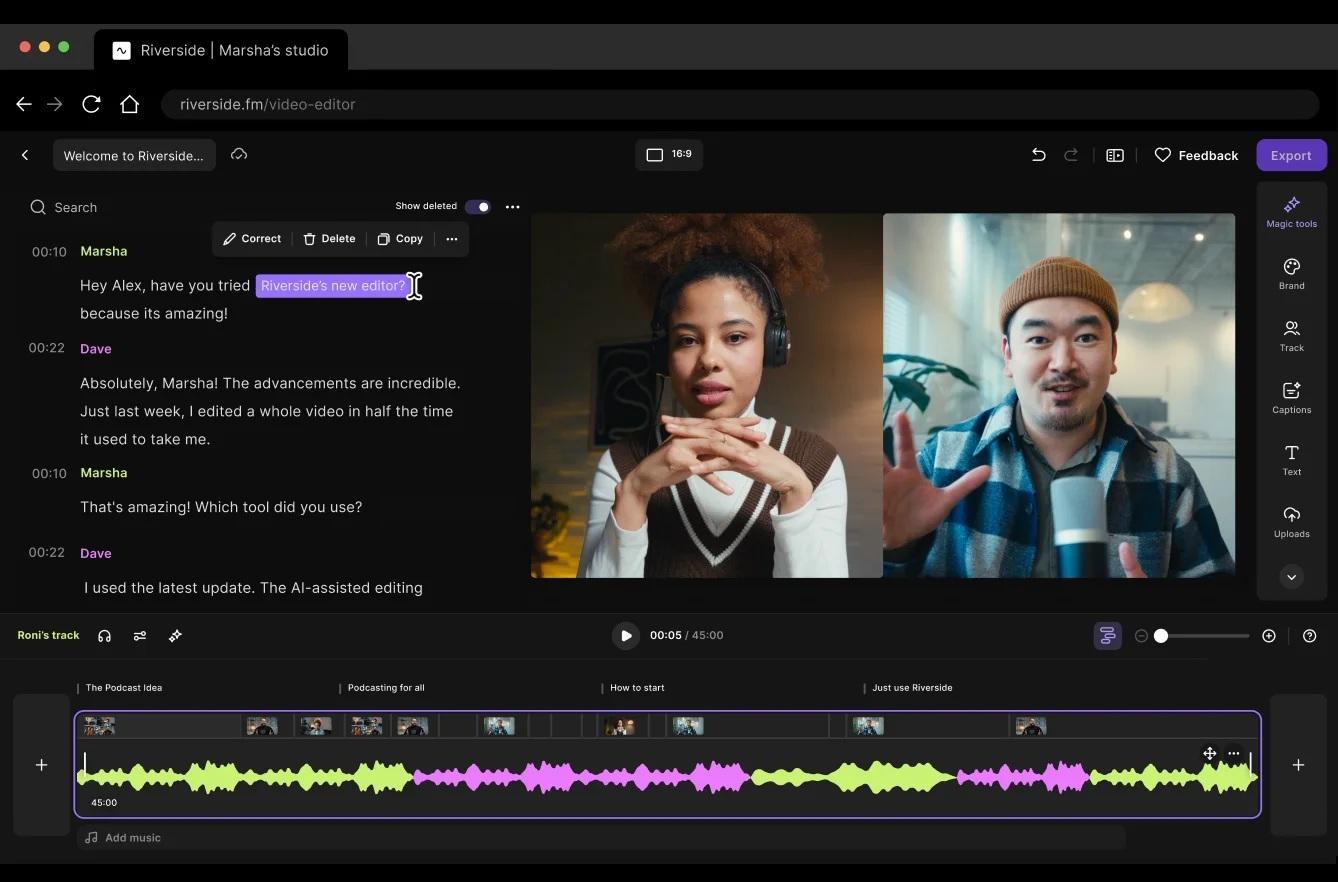
A Riverside podcast edit with two speakers, a transcript and audio tracks. Image credit: Riverside.
Best for: Recording a remote founder interview and editing it in the same place.
Riverside makes sense when the interview still needs to be recorded. It can record participants on separate audio and video tracks. You can then edit the full episode, change the layout and prepare short clips. If the conversation already happened, you can upload the recording into its editor.
Separate tracks are useful when the host and guest react at the same time. Keep a short reaction if it adds something to the exchange. If it only distracts from the guest’s point, review whether you can trim or lower the relevant sound without cutting the rest of the answer. Check the speaker layout after editing, especially when someone leaves and comes back to the call.
This route suits a team that wants to record and edit in the same place. Test how you will handle the footage before inviting the guest. Record a brief sample with two people and check the audio, video, captions and export options. Fixing a setup issue on a sample is easier than trying to repair it after a long interview.
What to check: Test separate tracks, layout and what your account can export before recording the guest.
Verdict: Choose it when recording logistics are as important as the edit.
3. Descript for Editing a Founder Interview by Transcript
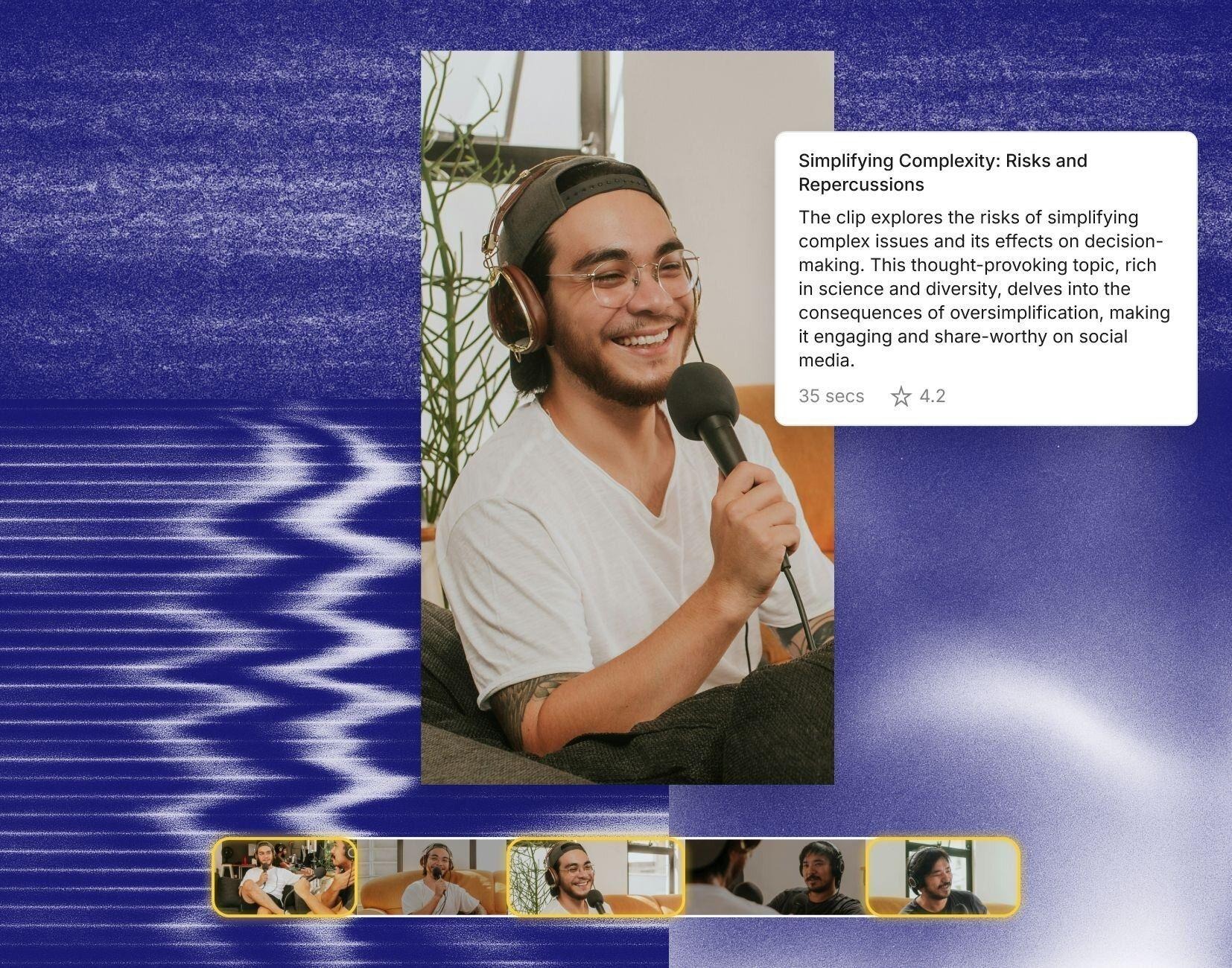
Descript product visual showing a video, transcript and clip strip. Image credit: Descript.
Best for: Finding and editing exact spoken lines in a long conversation.
Descript lets you edit audio or video by changing the transcript. This is useful when someone reviewing the interview remembers a phrase and wants to find it without watching the whole episode again. Search for the phrase, check the speaker and decide where the opening and ending should be. Descript also offers a feature for suggesting short clips from a recording.
Read two or three sentences on either side of a proposed cut. When a founder says “we shipped it in a week,” an earlier sentence may explain that they are talking about a prototype. If you cut that context, the short can give viewers a different impression from the full answer. Listen for changes in tone at the edit point and check whether the cut looks natural on screen.
MTOAG’s Descript review covers the basics of editing through text. This workflow is a good fit if multiple reviewers discuss the recording in terms of what was said. Check the final captions separately. A clear transcript can still miss a person’s name, a product term or a number.
What to check: Check names and screen cuts after editing the transcript.
Verdict: Choose it when the team reviews the episode through what was said.
4. OpusClip for Making Clips From an Approved Episode
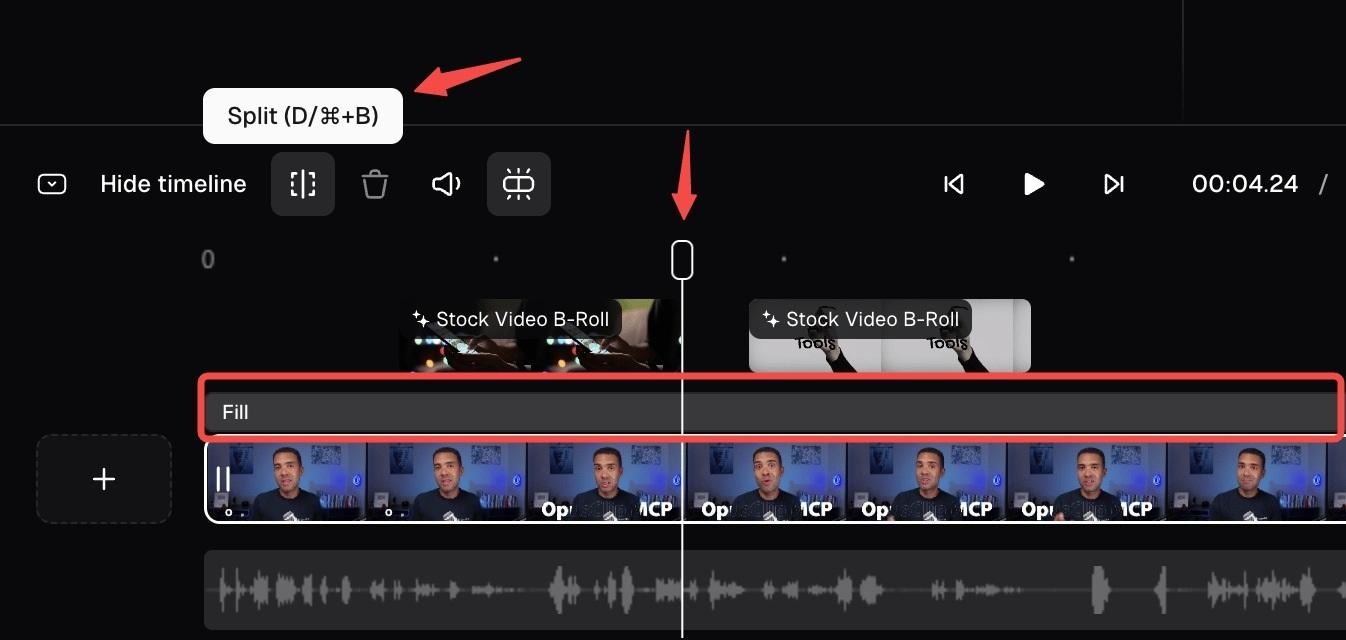
Clip splitting controls on the OpusClip timeline. Image credit: OpusClip Help Center.
Best for: Generating short clips from an approved episode.
OpusClip is useful when you already have a long interview or an edited episode and need candidates for social clips. It can identify sections, make short versions and add captions. Review the suggestions against the goals of your campaign. A clip about a lesson from the founder’s early days may suit a different audience from a clip that explains a product decision.
Play each suggested short without the rest of the episode. If the first sentence refers to a person or event the viewer has not heard about, bring back a little context or choose another moment. Preview the vertical frame on a phone and check that it follows the right speaker when the conversation switches.
This route can make sense when your bottleneck is turning a finished recording into short clips. Check the plan’s credits, export options and watermark rules before preparing a batch. Use your review time on the clips you intend to publish and keep the full episode available so you can check the source of any quote.
What to check: Review quote context, vertical cropping and caption accuracy.
Verdict: Choose it when the full episode is finished and your team needs suggestions for clips.
5. Kapwing for Cutting Pauses in Video Podcast Clips
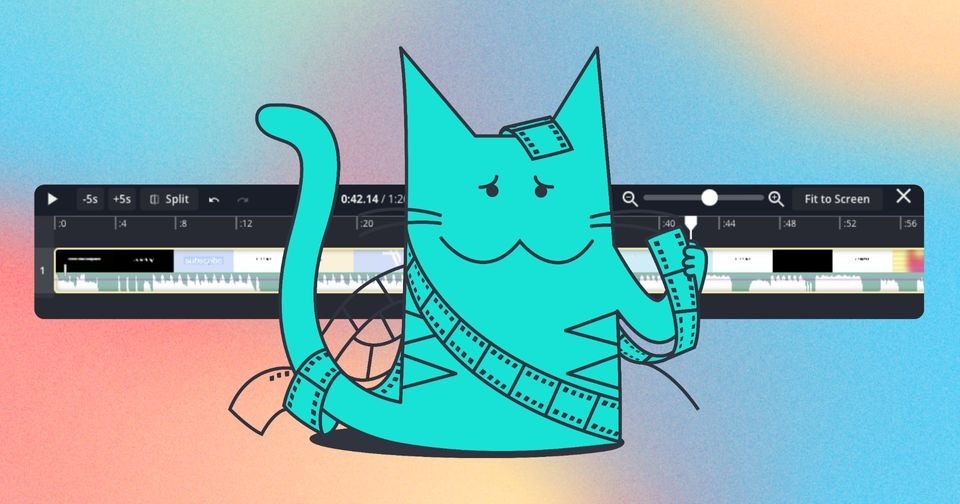
Kapwing’s illustration for Smart Cut and scene detection. Image credit: Kapwing Help Center.
Best for: Short podcast clips that need a tighter pace.
Kapwing’s Smart Cut can find silent sections and remove them from a video. For a founder clip, start with one complete answer and check the cuts before exporting. A long technical pause may be safe to remove. A short pause before the main point can make the answer easier to understand.
Check the first and last lines in the clip, especially if the founder uses shorthand or refers to an earlier question. If the automatic cut makes a sentence feel rushed, give it more room. Kapwing is a fit for editors who want to tighten selected footage and then review it in a browser.
What to check: Silence removal cannot tell which pauses matter to the story. Listen back before approving the cut.
Verdict: Useful when you already know the excerpt and want a quicker editing pass in the browser.
6. Adobe Premiere for Finishing a Full Video Podcast
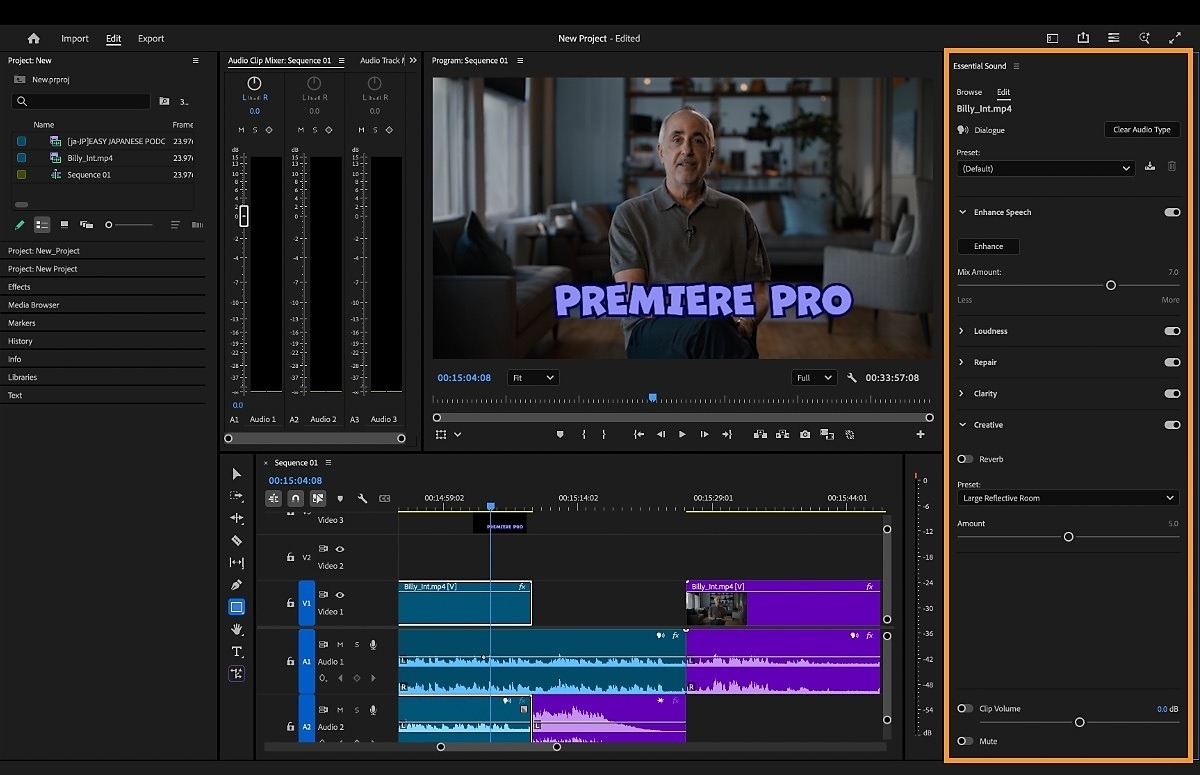
Dialogue controls in Adobe Premiere’s Essential Sound panel. Image credit: Adobe Help Center.
Best for: Podcast teams that already edit on a desktop timeline.
Adobe Premiere offers tools for shaping an episode on a timeline and cleaning up dialogue with Enhance Speech. If you have studio camera angles and a separate voice track, you can check where each angle changes and listen for uneven voices before preparing the final mix.
Apply speech enhancement to a short section first. Listen to the room tone and the edges of words. If the treatment changes the voice too much, adjust it while you still have the original for comparison. Use this route when the main episode needs careful finishing and you want to keep all the decisions in the desktop project.
What to check: Allow time for detailed review, including the effects of voice processing and the settings for each short export.
Verdict: A good fit for detailed finishing when the editor already has a Premiere workflow.
How Do You Get an Episode and Short Clips From the Same Interview?
Make the full episode easy to follow first. Cut technical interruptions, fix uneven sound and protect the order of each answer. Then choose short clips around individual ideas. A strong excerpt gives the viewer enough context to understand the point without seeing the whole conversation.
Start with an interview about a delayed launch. In the episode, you might keep the discussion of what happened, what the team tried and what eventually worked. For a short clip, choose the part where the founder explains one specific mistake and what the team changed. If the opening assumes the viewer knows which launch is being discussed, bring that line back in or add a short introduction that states it plainly.
Make a list of the intended channels before exporting. Keep a wide cut for the full video and check a vertical preview for each short. If the host and guest both need to be visible, try a layout that keeps both faces readable. If a clip is about one answer, a close framing of the speaker may be clearer.
How Do You Review a Founder Interview Before Publishing?
Play a section where both people speak and a section where the guest tells a longer story. In the first, check whether the camera stays on the right person and both voices remain clear. In the second, listen for an edit that cuts off a reason, condition or example. A pause before the key line may help the answer land, while a pause caused by a connection issue may be worth shortening.
Give each proposed short a simple name that describes the idea in it. Then write down the first and last lines so a reviewer can check the excerpt against the main episode. Ask whether the clip makes sense without the question and whether a caption changes the meaning of what the founder said. If it needs too much setup, try a different moment. A complete answer about one decision can work better in a short clip than a broad claim about the whole company.
Key Takeaways
- Choose the editor around the work you have left, whether that is recording, assembling an episode or finding clips.
- Keep camera and mic files organized so audio and picture can be checked independently.
- Review the original answer when a short excerpt could change its meaning.
- Check captions and framing on a phone before publishing.
Frequently Asked Questions
Should I edit the full episode or the clips first?
Start with the full episode if both are part of the release. That gives you a version you can check before choosing excerpts. If you need a teaser first, review it against the original conversation.
Can I make clips from an interview with only one camera?
Yes. Good sound and a clear answer matter more than the number of angles. Check the crop and leave enough space for readable captions.
How many clips should I take from one interview?
Start with the moments that make sense on their own. Three distinct answers are more useful than several clips repeating the same idea. Add more when each one gives the audience something different.
Conclusion
A founder interview needs an editor that protects what the guest meant. If you have separate camera and mic files, invideo Editor gives you a timeline to adjust the first cut and refine sound. Riverside makes sense when you still need to record the interview. Descript helps when the transcript drives the edit. Premiere fits a more detailed finishing process, while OpusClip and Kapwing can help when the remaining job is preparing short clips.
Pick one answer and run it through the workflow you are considering. Ask a reviewer to watch the short clip, then check it against the original conversation. Publish the clips that make the founder’s point clear on their own and keep the full episode available for viewers who want the rest of the story.