Your product demo is approved, but the release team asks for a shorter opening and one updated screen. An MCP connection can let an AI assistant make those changes in the editing system. The question is whether it hands back something your team can review and revise.
For a one-off demo, an editable timeline matters most. For a rollout with ten versions, a template or render workflow may be the better fit. This comparison covers both and tells you what each tool actually works on.
What Does MCP Do in a Video Editing Workflow?
The Model Context Protocol is a standard that lets AI applications connect to outside tools and data. In video editing, it can let a connected assistant read a transcript, find footage or make changes in an editing project. The actions depend on the tool you connect.
For a SaaS demo, start by deciding how much work to hand over. Finding every mention of an old feature name is different from replacing the footage that shows it. The first task needs access to the recording or transcript. The second needs a way to change the edit and a person who can check the new shot against the product.
MCP Video Editors Compared for SaaS Demos
ToolBest forHow it worksVerdictInvideo EditorDemos that need manual reviewDirect changes to an editable timelineBest when the editor needs to take over the same cutDescriptNarrated demos and webinarsWork with transcripts and compositionsBest when speech guides the editEddie AIInterview-led product storiesFind recorded answers and assemble a cutBest for sorting spoken footage before finishingShotstackTeams that need several renders from the same edit structureCompose, preview and render structured video editsBest for repeatable structured rendersCreatomateRecurring demos with a set design and replaceable mediaWork with templates and review renders through MCPBest when the layout stays the sameVideoDBTechnical teams with a large collection of recordingsIndex, search, clip and compose video through MCPBest for searching many takes1. Invideo Editor for Revising a Product Demo on a Timeline
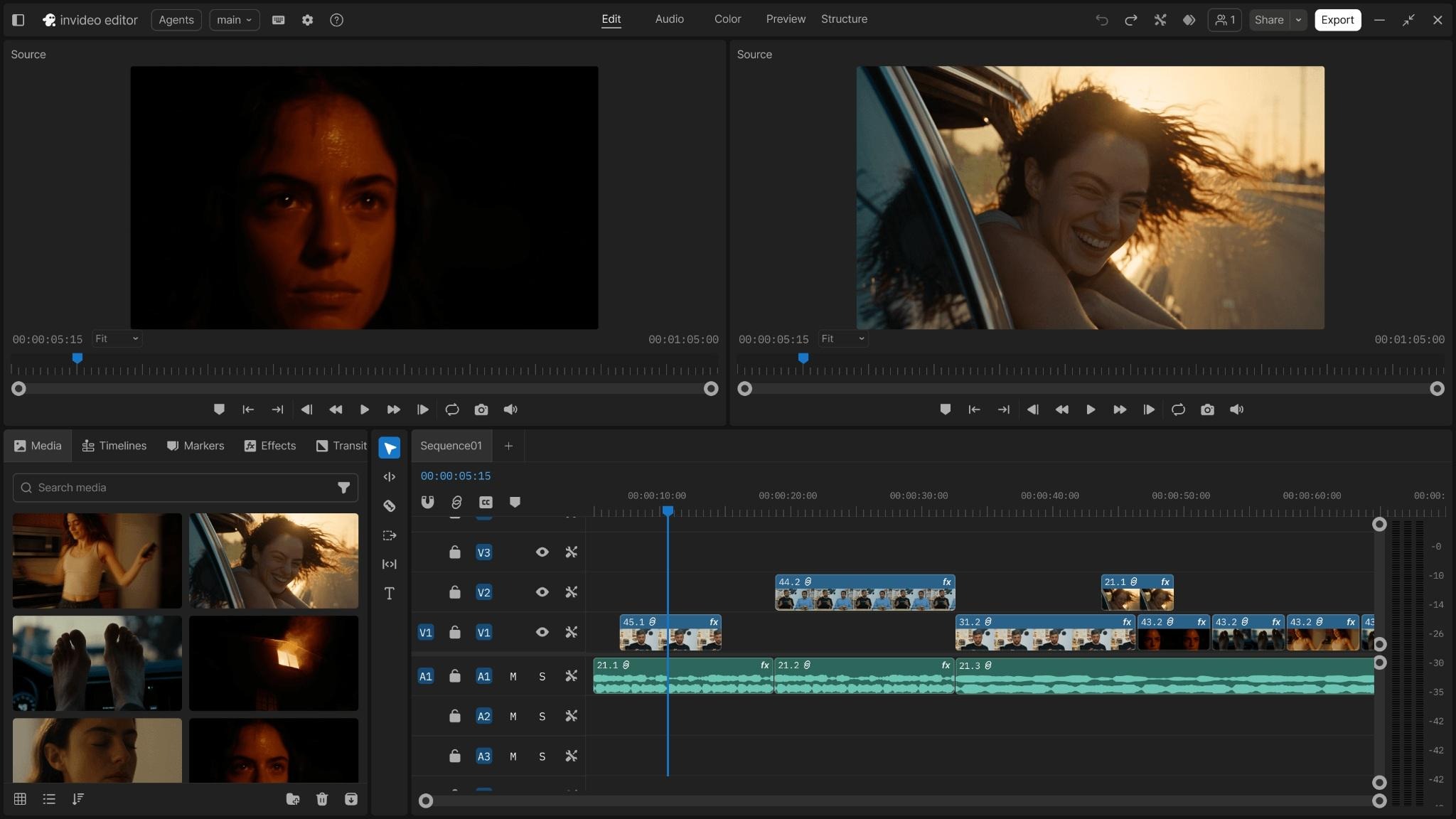
Media bins, preview panels and tracks in invideo Editor. Image credit: invideo.
Best for: A SaaS demo that needs direct changes to a timeline.
The invideo MCP server connects supported assistants such as ChatGPT or Claude to invideo Editor. The assistant can make changes in the editing project while the timeline remains available for manual edits. That suits demos with several screen recordings, a voice track and a few shots of the presenter.
Give your assistant the same instructions you would give an editor. Name the source takes, the feature and the part that must be kept. A brief might say: open with the completed report, keep the click that opens the export menu and remove the earlier take where the old label is visible. A focused request makes it easier to see whether the result matches what you asked for.
Review the timeline before you accept the change. Check that the new shot starts before the click and ends after the confirmation appears. If the edit needs a little more room, you can extend the clip yourself. If you want a shorter launch version, preserve the approved demo and work from a separate version so the team can still find the original cut.
Ordinary MCP editing and media generation have different costs. Invideo’s ordinary editing through the connection is free, while generated media uses credits. Your AI assistant may also have its own usage limits. Start with your recorded footage and the edit you already need before deciding whether to add generated shots.
What to check: Watch the cursor action, screen labels and the audio at every changed cut.
Verdict: Choose it when someone needs to take over the same edit after giving the assistant direction.
2. Descript for Transcript-Led Product Demos
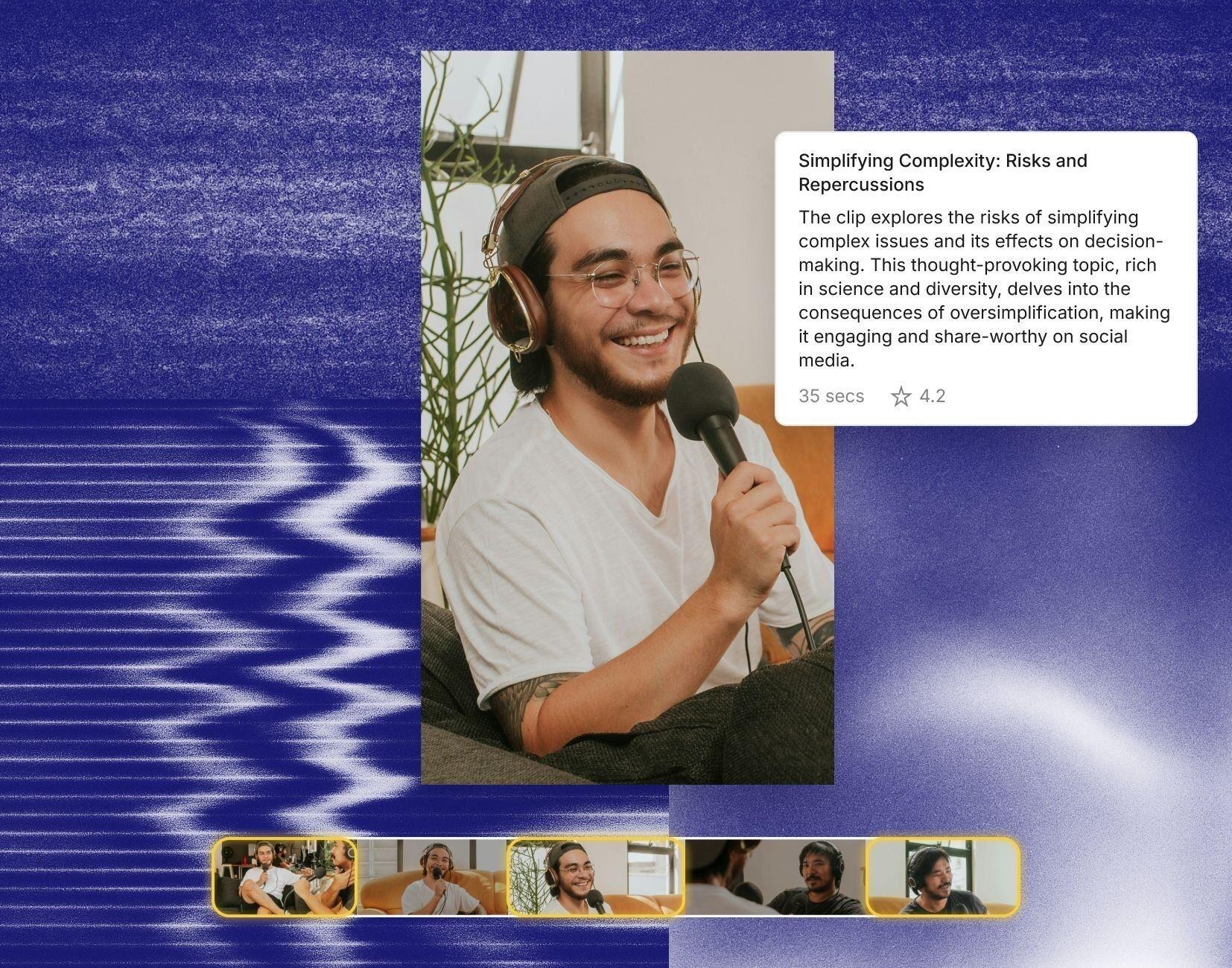
Descript product visual showing a video, transcript and clip strip. Image credit: Descript.
Best for: A demo built around a transcript or narrated product webinar.
Descript’s MCP connection is useful when a demo is built around a spoken explanation. An assistant can work with a project transcript and make changes in Descript. That helps when you have a long product webinar and need to find a short section that explains a feature clearly.
Ask for the relevant moment before asking for a cut. If the presenter says “this report” without naming it, include the earlier line that tells viewers which report they are looking at. You can then review the composition and fine-tune the words and timing. Check any screen action that shares the cut point with an edited sentence.
This is a good fit when the transcript is the quickest way into the material. A screen capture with no spoken explanation needs a different kind of review. In that case, point the assistant to the relevant time or recording and inspect the resulting picture rather than judging the cut from text alone.
MTOAG’s Descript review offers more background on editing by transcript. Check the current MCP actions in your account before building an approval process around a specific command.
What to check: Review screen actions alongside every change to what the presenter says.
Verdict: Choose it when the team needs to find, cut or rearrange material through the spoken explanation.
3. Eddie AI for Interview-Led Product Demos
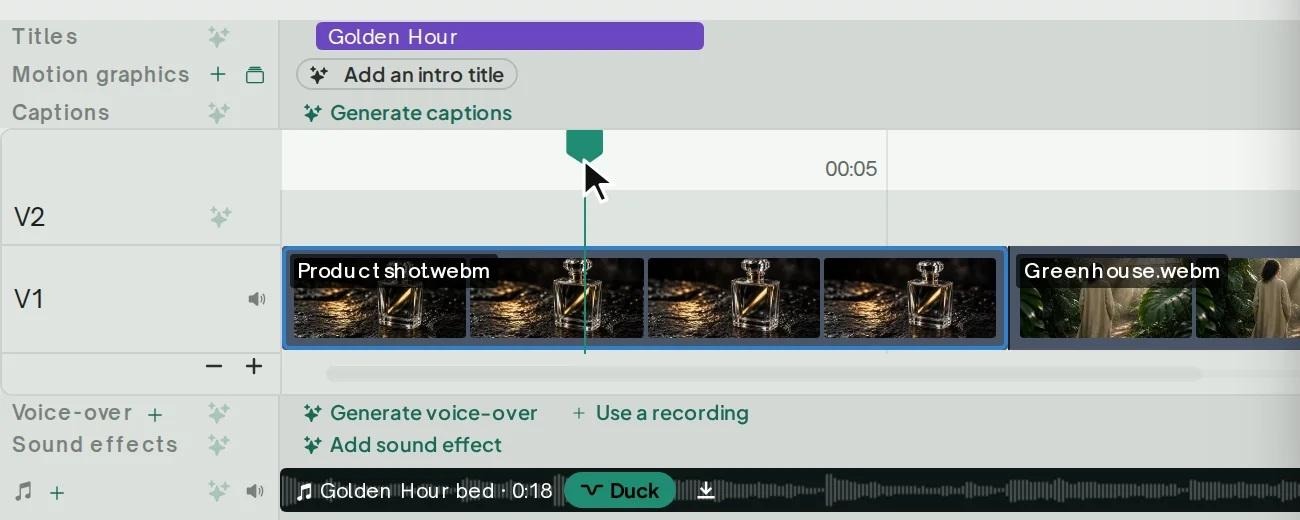
The clip timeline shown in Eddie’s guide to manual editing. Image credit: Eddie AI Help Center.
Best for: Demos that start with several interviews or presenter takes.
Eddie AI exposes its video editing tools through an MCP server. Its documentation describes a workflow where you bring footage into a project, the service analyses the sources and an assistant can search transcripts and build a cut. This makes sense if the demo is based on recorded conversations with a founder, customer or product lead.
Say your team interviewed three people about a new reporting feature. Ask the assistant to find the answers that explain the problem, show how the team solved it and describe what changed after release. Review those selections in the source recording. A sentence may sound polished and still leave out an important condition that came immediately before it.
Then decide where real product footage belongs. If a speaker says the page updates after a filter changes, show that action at that moment. A founder story and an app walkthrough need different proof, even when they share a product name. Keep the words in context and make sure the video sees the feature through the same steps a customer would follow.
Eddie is worth considering if the demo starts with a lot of spoken footage and the team needs to find the right pieces quickly. For a product tour with very little dialogue, try a short section before committing the rest of the project.
What to check: Review selections against the source, especially where a qualifier changes a claim.
Verdict: Choose it when finding useful moments in recorded conversations is the central job.
4. Shotstack for Rendering Repeatable Demo Versions
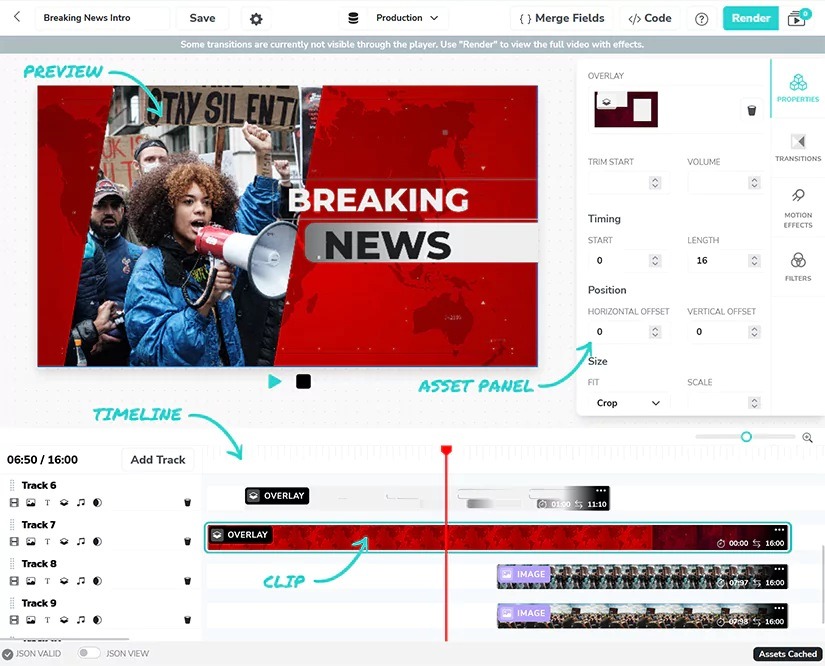
Studio timeline shown in Shotstack’s designer guide. Image credit: Shotstack.
Best for: Teams that need several renders from the same edit structure.
Shotstack’s MCP server can compose and render video, and its documentation describes a preview in Studio before rendering. A SaaS team could build one demo structure, keep the screen recording in place and swap the offer card for a regional launch. Check the preview against the approved assets before rendering the batch.
The useful comparison is how a teammate takes over. Ask the reviewer to change one text element in a preview or regenerate one version from the same structure. If the project depends on hand-tuned timing and frequent visual changes, compare that review step with a timeline-focused editor before committing.
What to check: The workflow needs someone to manage its edit structure, media and render output.
Verdict: A strong fit for repeatable output when the team can maintain the edit structure and assets.
5. Creatomate for Template-Based Product Updates
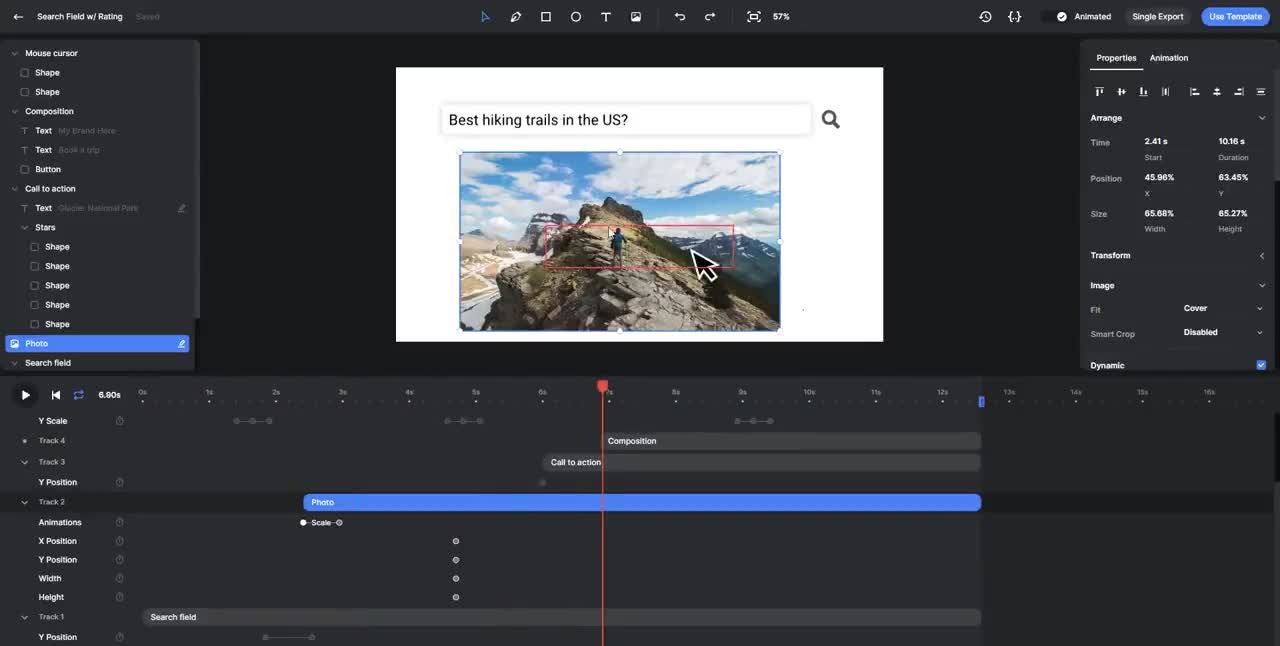
The template timeline in Creatomate’s walkthrough. Image credit: Creatomate.
Best for: Recurring demos with a set design and replaceable media.
Creatomate’s MCP connection gives assistants access to templates and renders in a linked project. A launch team can keep a recurring feature-update design and substitute a new headline, recording or end card. One connection reaches one project, which matters when teams keep client or campaign assets separate.
Test the longest headline and the smallest screen recording you are likely to include. Check whether the template still leaves room for the interface and captions. If each release needs a distinct visual story and timing, a flexible project timeline may be more useful than trying to fit every demo into the same layout.
What to check: Set up the variables and project before making a batch. A template needs review when the layout changes.
Verdict: Choose it when the layout stays stable and the text, footage or offer changes.
6. VideoDB for Finding and Assembling Demo Footage
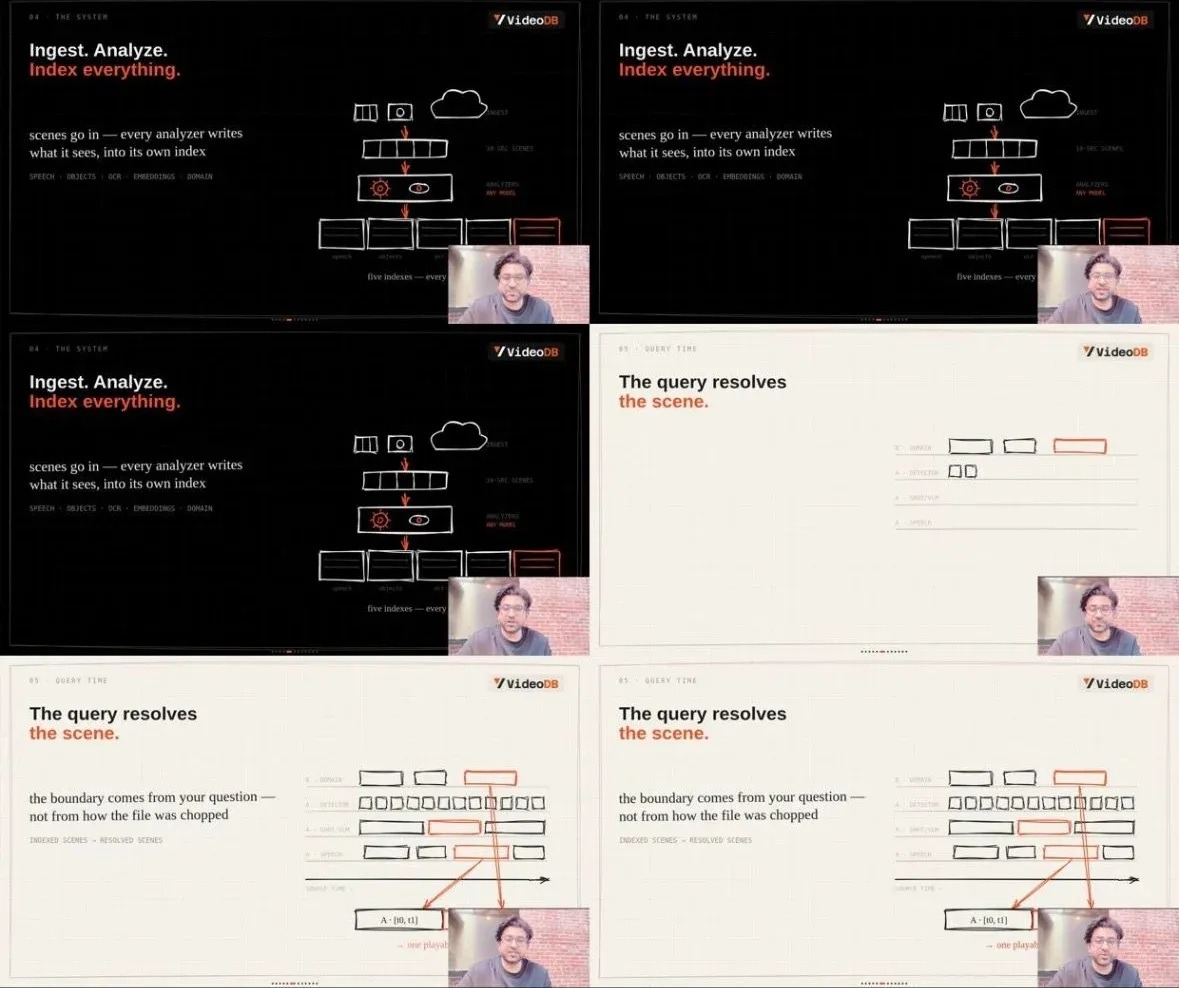
Frames sampled from source footage in VideoDB’s launch-video case study. Image credit: VideoDB.
Best for: Technical teams with a large collection of recordings.
VideoDB’s MCP server provides actions for bringing in footage, searching it and assembling clips. That can help when a launch has several versions of the same screen recording and the team has to locate the take that shows the final interface. VideoDB also published an example of using its tooling to assemble a launch video from indexed takes.
Test the search with a step you can recognize on screen. Ask for the recording and time range first, then request a short clip. Compare the result with the original. A technical team can use this approach to organize and assemble material at scale, while an editor may still want a separate hands-on finishing step.
What to check: Evaluate the review and handoff separately from search. A useful result needs a clear source and cut point.
Verdict: Worth testing when finding the right take is a bigger problem than finishing a single cut.
How Do You Test an MCP Editor Before a Launch?
Give each tool the same approved footage and one small job. Ask for a short cut that shows the result first, includes one complete task and ends on a screen viewers can check. After the first pass, request a change, then have a second person open the draft and make a manual adjustment.
Use a real release task so the test has a clear answer. If you are showing a new export feature, have the assistant find the take with the new menu, keep the click that confirms the file type and remove the waiting time. Check whether you can tell which source clip was selected, move the cut by a second and keep the narration in sync. That tells you more about the workflow than a draft that looks good in isolation.
Next, ask someone who did not write the prompt to review the video. Give them the approved script, the screen capture that should be used and the name of the current draft. They should be able to judge the result without scrolling through an entire chat history. Agree on who can request changes and who signs off before the video goes public.
What Should Your Team Include in an Editing Brief?
Name the project and the recordings. Describe what the viewer should know or be able to do after watching. Point out the steps that must remain on screen and say which parts can be shortened. If the product has an older screen or an internal feature that is unavailable to customers, identify the take that must stay out.
MTOAG’s overview of AI agent development discusses connecting agents with business systems and testing them against real tasks. The same idea applies here. Start with one approved project, one edit and one review you can repeat. Learn what your assistant can do on that project before asking it to handle every launch video.
How Should You Review an AI-Assisted Demo Before Export?
Play through the revised section without looking at the assistant’s message. A result can sound complete in the conversation and still leave the viewer without the final screen that proves a task worked. Watch the action at normal speed and compare it against the product version you intend to show. If you asked for a shorter opening, check the first sentence after the cut as well. It may refer to something the assistant removed.
Keep an approved edit available for comparison. Give the reviewer a short list of the requested changes and the timestamps where they landed. If a presenter line, customer quote or important disclaimer moved, check the sentence before and after it. The approval should apply to the finished version the team plans to publish. A chat message that says the work is complete is a poor substitute for checking the actual cut.
Key Takeaways
- Compare the actions available in the connected editor before you choose an MCP tool.
- Supply named files and an edit brief that tells the assistant what must stay.
- Judge the first draft and one revision on the same footage.
- Review every product claim and screen action before exporting the approved version.
Frequently Asked Questions
Does MCP edit the video itself?
MCP is the connection between the assistant and the editing tool. The editor makes its supported actions available to the assistant. The exact changes you can request depend on that connection.
Can I use MCP with a normal screen recording?
Yes, if the connected editor accepts your recording and gives the assistant access to that project. Test a small task first, such as finding the take that shows a specific feature.
Do I still need a human editor?
Someone should review the product screens, pacing and claims before the demo goes out. Some teams will also want an editor to take over the final timing, captions and export.
Conclusion
Choose based on the work the assistant should do and what the next person receives. Invideo Editor fits an app demo that needs an editable timeline after the agent makes a change. Descript and Eddie AI are useful when the key material is spoken. Shotstack and Creatomate fit repeatable renders and templates, while VideoDB is worth testing for search and assembly across many recordings.
Before making a choice, run the same small edit through the tools on your shortlist. Replace an old screen, review the changed section and ask someone else to finish it. Prefer the workflow that lets them find the right project, see exactly what changed and approve the export with confidence.